Mobile Casino App Guide for Canadian Players | 24Magic
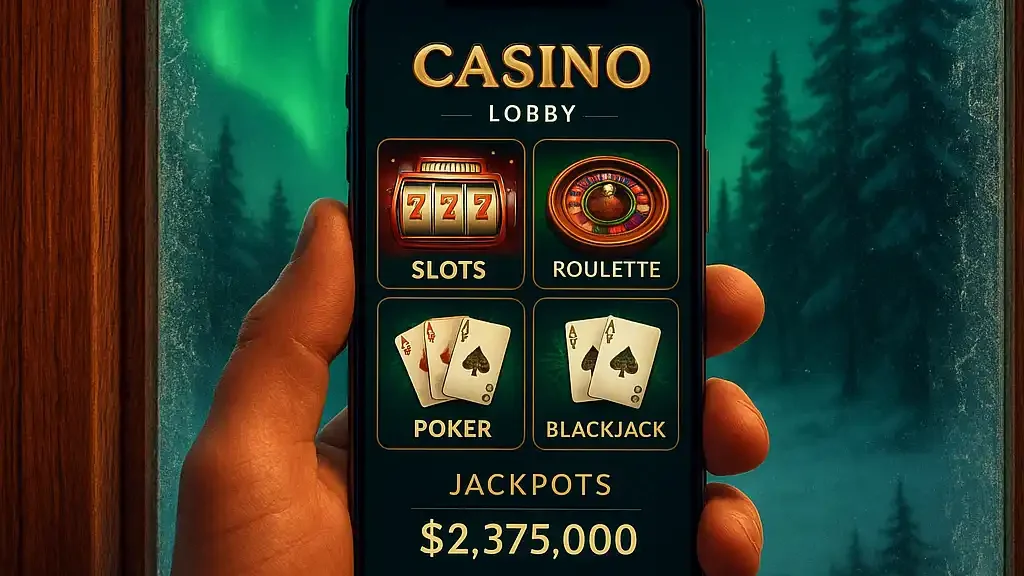
Play the Lodge from Anywhere
The 24Magic mobile experience was built so the northern lights ambience doesn’t get lost the moment a player switches from desktop to a phone screen. Rather than forcing a clunky app store download, the site runs a full HTML5 build directly in the mobile browser, with an optional home screen shortcut that behaves just like a native app once added.
No Download, Full Access
Opening 24Magic on a phone loads the same lobby, same game catalogue and same account balance as the desktop site, since everything runs through one shared backend. There’s no separate mobile-only game list and no feature locked behind a native download. This matters for players on limited storage plans or work devices where installing a betting app isn’t an option.
- Works in Safari, Chrome, Samsung Internet and most modern mobile browsers
- Home screen shortcut launches full-screen, hiding the browser address bar
- Same account, balance and bonus progress shared across devices
- No app store approval delays when new games or features ship
Adding the Shortcut on Android
Getting a launcher icon on an Android home screen takes under a minute. Open the site in Chrome, tap the three-dot menu in the top right corner, then select “Add to Home screen.” A prompt confirms the shortcut name, defaulting to 24Magic, and the icon appears alongside other installed apps. Tapping it afterward opens the site in a stripped-down browser frame without visible navigation bars, which feels close to a native experience.
Adding the Shortcut on iOS
iPhone and iPad users follow a similar path through Safari. With the site open, tap the Share icon at the bottom of the screen, then scroll down and select “Add to Home Screen.” iOS generates an icon using the site’s favicon artwork, and the resulting shortcut opens full-screen exactly like the Android version. Safari is the only browser on iOS that supports this shortcut behavior, since Apple restricts the underlying API to its own browser engine.
Performance on Real Networks
Slot animations and reel spins are optimized to stay lightweight on mobile data connections, not just Wi-Fi. Game assets load progressively, so a player can start spinning a title within a couple of seconds even on a moderate LTE connection, with higher-resolution art streaming in shortly after. Live dealer tables demand more bandwidth by nature of the video feed, and the player is shown a connection quality indicator so there’s no confusion if a stream needs to buffer during a weak signal.
| Feature | Desktop | Mobile Browser |
|---|---|---|
| Full game library | Yes | Yes |
| Live dealer tables | Yes | Yes, video-dependent |
| Sportsbook & live betting | Yes | Yes |
| Biometric login | No | Yes, where supported |
| Push notifications for promos | No | Yes, via shortcut |
Biometric Login and Quick Access
Devices with fingerprint or face recognition can enable biometric login after the first manual sign-in, skipping the password prompt on future visits. This is entirely optional and can be turned off in account security settings at any time. It’s a small touch, but for players jumping between the sportsbook and slots throughout the day, not retyping a password each time adds up.
Notifications Without the Spam
Players who install the home screen shortcut can opt in to push notifications covering deposit confirmations, withdrawal approvals and time-limited promotions like Free Spin Friday. Notification preferences are granular, so someone who only wants withdrawal alerts can disable promotional pings entirely without missing anything account-critical.
Data Use and Storage
The mobile build is designed to be light on both storage and data usage, since it never installs a traditional app package. Cached game assets clear automatically when browser storage runs low, and clearing browser data at any point simply means the next visit reloads assets fresh rather than losing any account information, since everything meaningful lives server-side tied to the account, not the device.
Tablet and Larger Screens
Tablets get a hybrid layout that sits between the phone and desktop experience, using the extra width for a two-column game grid and a persistent sidebar for account balance and quick navigation. Landscape orientation on a tablet is particularly well suited to the live dealer tables, since the video feed gets more room without cramping the betting controls beneath it.
Getting Support On the Go
The same live chat available on desktop is accessible from the mobile menu, and support agents can see account history regardless of which device a player is using when they reach out. There’s no need to explain the issue twice if a conversation started on desktop continues later from a phone during a commute.
A Few Tips for a Smoother Mobile Session
Keeping the browser updated ensures the best compatibility with the site’s HTML5 game engine, since older browser versions sometimes struggle with newer animation effects. Connecting to a stable Wi-Fi network before starting a live dealer session avoids mid-hand buffering, and enabling notifications through the home screen shortcut is the easiest way to catch time-sensitive offers like the weekend reload before it expires. For anyone who splits time between phone and desktop, logging in on both keeps loyalty tier progress and bonus wagering perfectly in sync, since it’s all tracked against one account rather than one device.
Battery and Screen Considerations
Long sessions on a phone can drain a battery faster than expected, especially during a live dealer stream with the screen brightness turned up. Lowering brightness slightly and closing other background apps helps a session last through a full evening without needing to hunt for a charger. Players on older devices with smaller screens may also find landscape mode more comfortable for slot titles with a wide reel layout, since it gives the symbols more room to breathe compared to the cramped portrait view on a compact handset.